
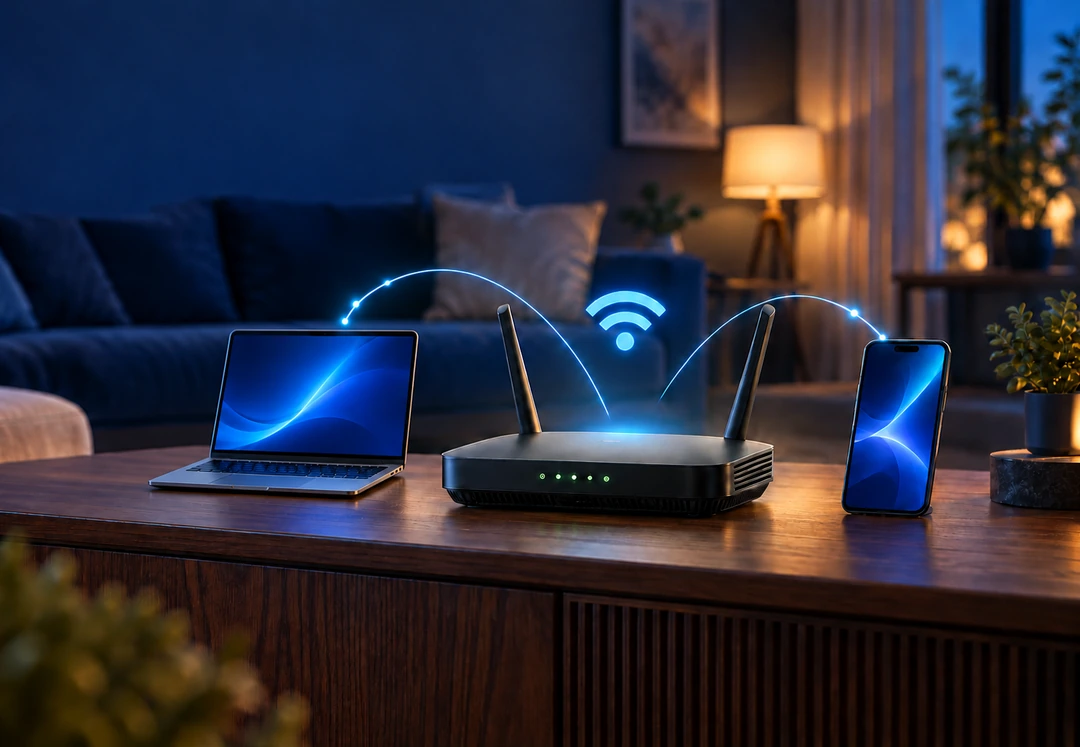
When lightning-fast fiber internet is brought into a home, the connection is only as good as the Wi-Fi router distributing it. Your home or office router is more than just a box that provides Wi-Fi. Each port, button, and indicator has a specific purpose, and understanding them can make troubleshooting and network setup much easier. It is also one of the best ways to tell the difference between a fiber outage and a local Wi-Fi issue.
What each part of your router does
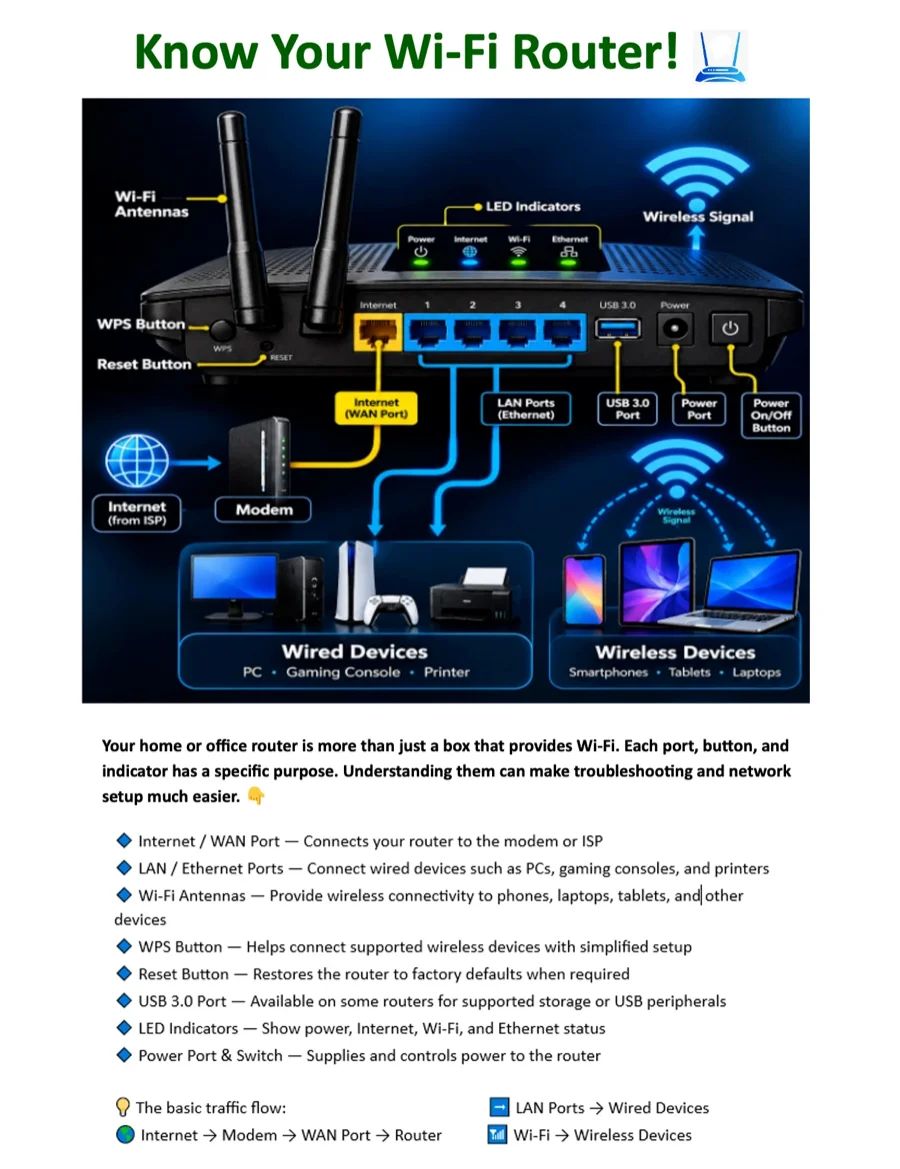
- Internet / WAN port — Connects your router to the modem or ISP.
- LAN / Ethernet ports — Connect wired devices such as PCs, gaming consoles, and printers.
- Wi-Fi antennas — Provide wireless connectivity to phones, laptops, tablets, and other devices.
- WPS button — Helps connect supported wireless devices with simplified setup.
- Reset button — Restores the router to factory defaults when required.
- USB 3.0 port — Available on some routers for supported storage or USB peripherals.
- LED indicators — Show power, Internet, Wi-Fi, and Ethernet status.
- Power port & switch — Supplies and controls power to the router.
The basic traffic flow: Internet → Modem → WAN port → Router, then LAN ports → wired devices and Wi-Fi → wireless devices.
Distinguishing between fiber outages and local Wi-Fi issues
- Isolating the source — Knowing your router's indicator lights helps you instantly check whether the fiber connection is active or if the issue is strictly internal Wi-Fi interference.
- Targeted fixes — Instead of assuming the entire internet service is down, you can identify if a single device dropped connection, a reboot is needed, or a specific band (2.4 GHz vs. 5 GHz) is struggling.
Communicating effectively with technical support
- Speaking the same language — Being familiar with basic router terminology allows you to describe symptoms accurately to support agents rather than relying on vague descriptions like “the internet isn't working.”
- Faster resolutions — Knowing how to quickly check app-based network dashboards, locate status lights, or perform a proper power cycle lets you execute support instructions in seconds instead of minutes.
Maximizing high-performance fiber speeds
- Eliminating wireless bottlenecks — Fiber provides incredible hardwired speeds, but router placement, physical obstructions, and network congestion can degrade Wi-Fi performance. Knowing your network layout helps you optimize placement.
- Proactive security and management — Utilizing built-in router management features such as guest networks, device blocking, and security shields gives you complete command over your home digital environment without needing an on-site service call.
Manage it all from your phone
iGo customers can see connected devices, set up a guest network, update their Wi-Fi password, and check network status from the free iGo Smart Home app. And when you need a hand, our local team in Grundy can troubleshoot with you faster when you know your way around your router.
Need Wi-Fi help? Contact us online or call (276) 935-8307. Built for today. Ready for tomorrow.